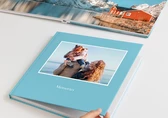
When designing a Photo Book, the desktop software offers different design modes to choose from. Each mode provides a specific way to start designing your product and offers different automated tools to help you create your Photo Book quickly and easily according to your needs.Please note that design modes are also available when designing calendars.
Once the product has been selected and the material options have been configured, the software will present you with different design modes. Depending on how much time you have or how much control you want over the design, you can choose from the following:
One Minute Photo Book mode, which automatically designs the product and allows you to make changes once the initial design is completed.
Pre-designed mode, available when selecting a glossy or matte cover, which provides themed templates with predefined layouts ready for you to fill with images and text.
Comfort designer mode, where images are placed on the pages one by one with the help of the software.
Empty template mode, which allows you to design the product from scratch without any automatic assistance.
Regardless of the design mode you choose, you can enable the Auto Layout function once your project is opened in the Designer. This option is located in the top left corner of the Designer interface.
When Auto Layout is activated, images automatically adjust to fit the pages whenever you add or remove them. The layout responds dynamically to the available space, rearranging existing images and elements to ensure a balanced and cohesive design throughout the Photo Book. This feature is particularly useful for quickly creating photo books, as it allows you to add content without manual adjustments. You can activate or deactivate Auto Layout at any time.
This mode is ideal if you want to design your Photo Book as quickly as possible. Once you select this mode, a window will appear displaying different design lines. You can filter them by category using the drop-down menu in the top left corner. Each design line applies elements such as clipart and backgrounds to your Photo Book according to a specific style. Click on a design line to select it.

The next step is to choose the photos you want to include in your Photo Book. Click Select images to upload photos from your device, choose Saal Cloud if you have an account and your images are already uploaded there, or select the Upload from a smartphone option. This option allows you to scan a QR code to connect your mobile device and import photos directly into the software.
Once uploaded, the images will be displayed in a preview window so you can review them before continuing. Make sure to check the image order, as this determines the sequence in which the photos will appear in your Photo Book. Images can be sorted by name or date using the options in the left column.

If you want to add more images, use the Add more images button. To remove unwanted images, select them and click the Remove images button in the top right corner.
For easier organisation, the Grouping option allows you to group images by date or location. If you want the software to automatically detect and skip similar images, activate the Stack similar images checkbox.
Once you are satisfied with your selection, click Continue.
A menu will then open allowing you to choose the number of pages. The software will suggest a recommended number based on the number of selected images. You can also manually select a specific number of pages in the box at the bottom. Pages can be added or removed later in the Designer if needed. Once the number of pages is set, click Select.
The software will process your selections and automatically create the Photo Book, displaying all pages in overview mode.
Review each page carefully to ensure everything looks as expected. To switch to single-page view, click the single-page view icon in the top right corner or click the edit icon on any page.

Although the Photo Book is automatically designed, you can still modify all objects and images, add new elements, or remove existing ones. You can add text using the Add text, button in the top menu, change layouts via the Layouts menu on the right, or switch the design line by opening the Design line menu and selecting a different one.
The Pages menu at the bottom allows you to navigate through the Photo Book. Pages marked in red indicate they have not yet been reviewed and must be checked. From this menu, you can add or delete pages using the buttons on the left and change the page order by selecting a page and dragging it to the desired position.
This mode is available for hardcover Photo Books configured with a glossy or matte cover. It offers professionally designed templates organised by theme, allowing you to create your Photo Book quickly by inserting your own images and text.
Templates are divided into categories, and each template displays information about the number of pages and images included. Before selecting a template, you can browse sample layouts by navigating through the thumbnails and preview options. Once opened in the Designer, templates can be fully customized.

After selecting a template, it will open in the Designer with pages that already contain predefined layouts, including empty image and text boxes ready for your content.

To personalize your Photo Book, simply drag images into the image boxes and enter text into the text fields. All elements can be modified, removed, or replaced to suit your design preferences.
This mode is available for Photo Books configured with special covers and for Professional Line Photo Books. In this mode, the product is designed page by page with the assistance of the software, as the Auto Layout feature is activated by default.
After selecting this mode, choose a design line to define the suggested layouts, then select the number of pages for your Photo Book. Pages can be added or removed later in the Designer. Once the number of pages is selected, click the Select button.
The Designer will open the Photo Book with the specified settings and display blank pages ready for design. As you drag images onto the pages, they will be automatically placed according to a layout. You can deactivate Auto Layout at any time using the toggle in the top left corner of the Designer.
In this mode, the Photo Book is designed entirely from scratch using the tools provided by the software, and the Auto Layout function is disabled by default.
When adding an image directly to a page, the image will be placed without being cropped and will retain its original aspect ratio. You can then manually resize and reframe the image as needed.
You can also add images, text, fill boxes, cliparts, backgrounds, and configure each element according to your design requirements. If desired, you can activate the Auto Layout function, so the software automatically arranges elements when adding new content.
If you drag an image from the left menu onto a page where an image is already placed, the Replace image option will appear above it. Dropping the image onto this option will replace the existing image with the new one.

You can view all pages at once using the overview mode. To open it, click the overview icon in the top right corner of the Designer. All pages in your project will be displayed, allowing you to review the entire Photo Book and rearrange pages if needed. To reposition a page, click and hold the move icon at the top of the page, then drag it to your preferred location.

In this view, you can also add new pages by clicking the plus icon between pages, delete pages using the bin icon at the bottom of a page, or duplicate a page along with its content using the copy icon. To return to single-page view, click the single-page view icon in the top right corner or select the edit icon (pencil) on the page you want to modify.
Images, text, fill boxes, backgrounds, and clipart can be added to glossy, matte, and white leatherette covers. For other special cover types, such as natural linen, only text and clipart can be used, as image files are not supported due to the nature of the material.
For full design flexibility, you can choose a Professional Line Photo Book with an acrylic or Brushed Metal Print cover.

Get exclusive discounts and designing tips! By signing up, you acknowledge our Privacy Policy. You can unsubscribe at any moment.







 Change your country