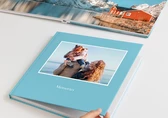
Reviewing your project before you finalize it is essential to ensure that it is error-free and meets your expectations. For a comprehensive review of your project, we recommend that you click on the Preview button in the top menu for an optimal final check.
In Preview mode, your photo product is presented as a full screen. This uncluttered view provides a complete understanding of the results of your photo product. The full-screen display removes spell-check underlining and bleed lines, allowing you to focus on the content. You can also zoom in and out by clicking the magnifying glass in the bottom right corner or selecting a value in the box. By default, the view is set to Auto, which adapts the product to your screen size. However, you can zoom in to examine details at a larger size.

For multipage products such as Photo Books and Calendars, you can easily navigate through the pages by clicking the arrows on each side of the photo product, or by selecting pages directly from the menu at the bottom.
In addition, if you want a quick overview of all pages at once, click the overview view icon in the top right corner of the Designer.

Once in overview mode, you can click the Preview button at the top to see a clean, distraction-free overview of all pages. This view provides a convenient way to visually review your entire project. From here, you can quickly rearrange pages by holding the movement icon at the top of each page and dragging it to the desired position.

When you’re ready to return to the designer, click the Back to design button in the bottom left corner.

Get exclusive discounts and designing tips! By signing up, you acknowledge our Privacy Policy. You can unsubscribe at any moment.







 Change your country