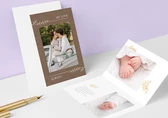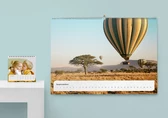
Text can be added and customized to your photo products by selecting the Text button in the design tools at the bottom. This will open the text tools menu for writing and adjusting text. Tools to customize the text appear at the top:

Font: Choose from a variety of fonts available for your photo product. Tap on a font to apply it.
Font Size: Select a text size from the list. Some fonts may have size limitations depending on the surface selected.
Character Styles: Options such as Bold, Italic, and Underline are available. Note that not all fonts support these styles.
Alignment: Align text horizontally left, center, right, or justified.
Color: Tap the color dot to open the color tool. Choose from options in the Grid or Spectrum tab. The selected color is displayed at the bottom for comparison. You can adjust the opacity using the slider. Tap OK to apply the color.

Additional tools are available by tapping the arrow at the bottom of the Text Tools menu:

Background color: Fill the entire text box with a specific color.
Highlight color: Apply a background color behind the text. The highlight color will overlay the background color if both are selected.
Line Height: Set the line spacing in the text box. The default is automatic, but you can select a specific value.
Vertical alignment: Align the text vertically at the top, center or bottom of the text box.
Automatic font size: When activated, this feature automatically adjusts the text size if the text box is resized to be smaller than the original text. This ensures that the text remains visible within the box.
When your text is ready, tap the green OK button in the top right corner to apply the configured text to the photo product.
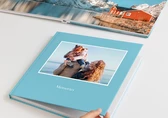
When creating a Photo Book, you can add text to the spine. First, write and customize your text on the Cover, then select it and click the Align button in the bottom menu. Here you will find the On book spine button. Clicking this will automatically place your text on the spine of the cover.
Please keep the following in mind to ensure correct display:


Get exclusive discounts and designing tips! By signing up, you acknowledge our Privacy Policy. You can unsubscribe at any moment.







 Change your country